 Omid Farhang
TL;DR
- Install
zsh, then run the Oh My Zsh installer on Ubuntu, Manjaro, or Arch. - Enable the
vscodeplugin, add Powerlevel10k, and install a Meslo Nerd Font. - Periodically
git pullcustom themes/plugins under$ZSH_CUSTOM— Oh My Zsh’s auto-update does not cover them. - Point the VS Code integrated terminal or Cursor IDE terminal at
/usr/bin/zshinsettings.json. - On Manjaro, also see How to Install Cursor IDE on Manjaro Linux.
If you use the simple Bash Terminal in your OS, you may want to give Zsh a try to use a faster and safer terminal with many more features. The simple Bash that exist in the common dist of Linuxes are not changed over years and just received some security fixes, but the community behind Zsh are improving it everyday and bring new useful plugins.
I use ‘Oh my Zsh’, Oh My Zsh is an open source, community-driven framework for managing your zsh configuration.
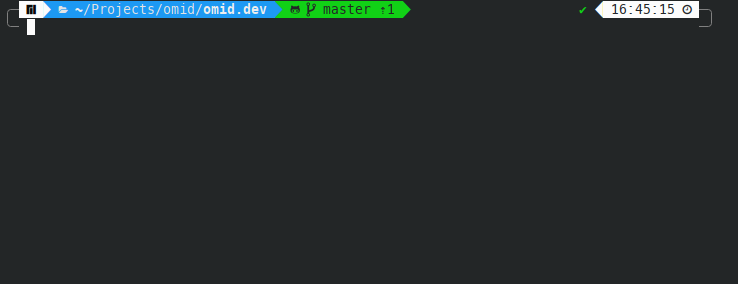
Install Oh My Zsh on Ubuntu, Manjaro, or Arch
This section is the fastest path if you searched for install oh my zsh and only need the commands. The rest of the post covers fonts, themes, plugins, and the VS Code / Cursor integrated terminal.
Step 1 — Install Zsh
On Ubuntu/Kubuntu:
| |
On Manjaro/Arch:
| |
Step 2 — Install the Oh My Zsh framework
Via Curl
| |
Or via Wget
| |
During installation it will ask you if you want to make it your default terminal and you may answer yes.
If you skipped that step or your distro did not change it automatically, you can change your default shell manually:
| |
Log out and back in after changing your default shell.
Configure Oh My Zsh
You can configure Oh My Zsh to change how it updates, enable or disable plugins, set the default user, and more. Open your own ~/.zshrc file without sudo:
| |
Here is a simple Linux-friendly example. Keep only the plugins you really use:
| |
Installing Powerlevel10k Theme
Powerlevel10k is a fast and customizable theme for Zsh. Oh My Zsh uses ~/.oh-my-zsh/custom as ZSH_CUSTOM by default, so first make sure its custom theme and plugin directories exist:
| |
Then download Powerlevel10k:
| |
Then set it as your theme in ~/.zshrc:
| |
Install the font in the next section before you reload Zsh or open a new terminal. The first time Powerlevel10k loads, it will start a setup wizard to help you choose the prompt style.
Installing Font
Powerlevel10k needs a Nerd Font to show icons and prompt symbols correctly. If you use Powerlevel10k, install the Meslo font recommended for Powerlevel10k. If you use another theme later, regular Meslo Nerd Font is usually enough.
For Powerlevel10k
On Ubuntu/Kubuntu, install the Powerlevel10k Meslo font files manually for your current user:
| |
On Manjaro/Arch, install the matching package from the extra repository:
| |
For other themes
On Ubuntu/Kubuntu, install Meslo Nerd Font manually for your current user:
| |
On Manjaro/Arch, you can install Meslo Nerd Font from the package manager:
| |
If you installed ttf-meslo-nerd-font-powerlevel10k for Powerlevel10k, you do not need to install ttf-meslo-nerd too.
You can verify the installed font name with:
| |
After installing the font, reload Zsh:
| |
You can also just open a new terminal.
Optional: useful plugins
You can also install these two plugins for a better experience with Oh My Zsh:
| |
Then enable them in the plugins=(...) list in ~/.zshrc. Keep zsh-syntax-highlighting last:
| |
Reload Zsh after changing the plugins:
| |
You can also just open a new terminal.
Keep custom themes and plugins updated
Oh My Zsh’s built-in updater (omz update, or the zstyle ':omz:update' settings above) only refreshes the framework itself. Themes and plugins you git cloned into $ZSH_CUSTOM — Powerlevel10k, zsh-autosuggestions, zsh-syntax-highlighting — stay frozen until you pull them again.
One command updates every git checkout under custom/plugins and custom/themes:
| |
Run that every few months, or wrap it in a shell alias / cron job if you prefer not to remember. To refresh Oh My Zsh and the custom clones in one go:
| |
Change the default terminal in VS Code or Cursor IDE
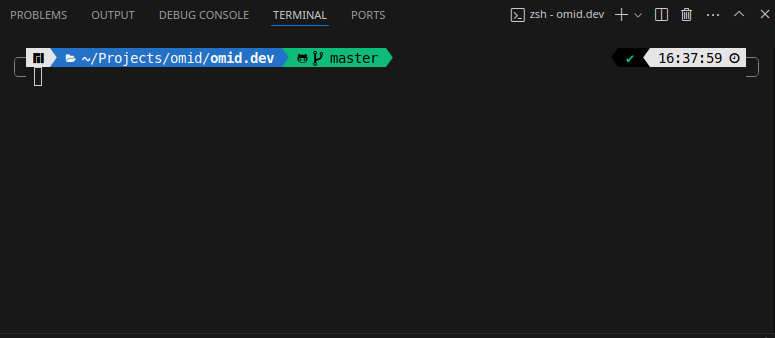
By now we have installed and configured Zsh, set Powerlevel10k as the theme, and installed a compatible font. VS Code and Cursor IDE may still use Bash as the integrated terminal, so we want to switch the vscode terminal (or Cursor terminal) to Zsh. After installing the font, restart VS Code or Cursor so it can detect it.
If you are setting up Cursor on Manjaro first, follow How to Install Cursor IDE on Manjaro Linux and keep the AppImage current with:
The Oh My Zsh vscode plugin also improves the integrated terminal experience inside the editor. Enable it in your plugins=(...) list in ~/.zshrc as shown in the configuration section above.
Now configure VS Code or Cursor to use Zsh. Add the following lines to settings.json or find them one by one in settings and apply them:
| |