 Omid Farhang
I’ve been using Linux for more than 15 years.
I’ve administered servers, tuned kernels, experimented with filesystems, and read countless articles about swap, virtual memory, caching, and performance. I started with Ubuntu 4.x, spent years on Arch-based distributions, and today most of my work happens on Manjaro and Kubuntu.
So I was surprised when I stumbled upon a feature that had apparently been helping my system for years without me realizing it: zswap.
This post is what I wish I had found earlier — a practical map of compressed memory on Linux, how to inspect it on other operating systems, and enough history to explain why so many of us missed it.
How a swap question led me to zswap
The rabbit hole started with a simple question:
What’s the performance difference between a swap partition and a swap file?
I expected a discussion about block devices, filesystem overhead, and SSD wear. Instead, I learned that modern Linux often has an additional layer between RAM and disk swap — and on my Manjaro laptop, it had been active the whole time.
The mental model most of us learned looked like this:
| |
But a modern Linux desktop is more likely to behave like this:
| |
When memory pressure rises, the kernel can compress cold pages and keep them in RAM instead of immediately writing them to disk. That is the feature I had never really looked at.
A brief timeline: from disk swap to compressed memory
Understanding why this stayed invisible helps to see how recent the whole stack really is.
| Era | What changed |
|---|---|
| 1970s–1990s | Virtual memory and swap-to-disk become standard on Unix-like systems. The story is simple: RAM fills up, cold pages go to disk. |
| 1990s–2000s | Linux installers commonly create a dedicated swap partition. Tuning guides focus on swap size, swappiness, and whether swap belongs on SSD at all. |
| 2000s–2010s | Swap files become more common on desktops — easier to resize, works across distros, and good enough for many btrfs/ext4 setups. The swap-partition-vs-file debate stays alive, but both paths still assume disk is the next stop after RAM. |
| 2012–2013 | Seth Jennings publishes the zswap patch series. zswap merges into Linux 3.11 (September 2013) as a compressed cache in front of disk swap. LWN’s overview is still one of the best explanations. |
| 2013 | Apple ships Compressed Memory in OS X Mavericks (10.9), using an in-RAM compressor before paging to disk. |
| 2010s | zram (compressed block devices in RAM, often used as swap) spreads from embedded/Android workloads to desktop Linux. Fedora and others later experiment with zram-by-default setups. |
| 2015+ | Windows 10 adds built-in memory compression in the memory manager. It is on by default on client Windows; server SKUs treat it differently. |
| Today | Many desktop Linux installs — including mine — run zswap in front of a swap file, quietly, with no installer checkbox and no obvious desktop indicator. |
The pattern is consistent: once CPUs got fast enough, every major OS added a compression step before hitting disk.
Three layers worth separating: RAM, zswap, zram, and disk swap
These names sound interchangeable. They are not.
Regular swap (disk)
Whether it lives on a partition or in a file, disk swap is the slow layer. The kernel evicts pages to block storage when RAM is under pressure. Reads and writes here cost latency and, on SSDs, write endurance.
zswap (compressed cache in RAM, backed by disk swap)
zswap intercepts pages on their way out to disk swap, tries to compress them, and stores the result in a RAM pool. If the compressed form fits, the disk write may be deferred or avoided entirely. If the pool fills up, pages still fall through to ordinary swap.
Important properties:
- Works in front of existing swap — partition or file.
- Exposes stats in
/proc/meminfo(Zswap,Zswapped). - Often enabled by default on recent kernels/distro configs, but not universally.
Kernel documentation: zswap admin guide
zram (compressed block device in RAM)
zram creates compressed block devices in memory. Those devices can be formatted and used as swap, replacing or supplementing disk swap entirely. Fedora’s swap-on-zram approach is the common desktop example.
Important properties:
- Swap activity can happen without touching disk at all until zram fills up.
- Checked with
zramctl/swapon --show. - Orthogonal to zswap: you can run zswap + disk swap, zram alone, or combinations depending on distro tuning.
Good comparison write-ups: Arch Wiki: Zswap, Arch Wiki: Zram
How they fit together
| |
How to check memory compression on Linux
These commands are safe read-only inspection. Run them on your own machine and compare.
If you want the fastest clue before opening /proc, start with htop.
The fast visual check: htop
Modern htop (3.x on Arch/Manjaro) color-codes memory in the top bar. Press F1 or h for the legend:
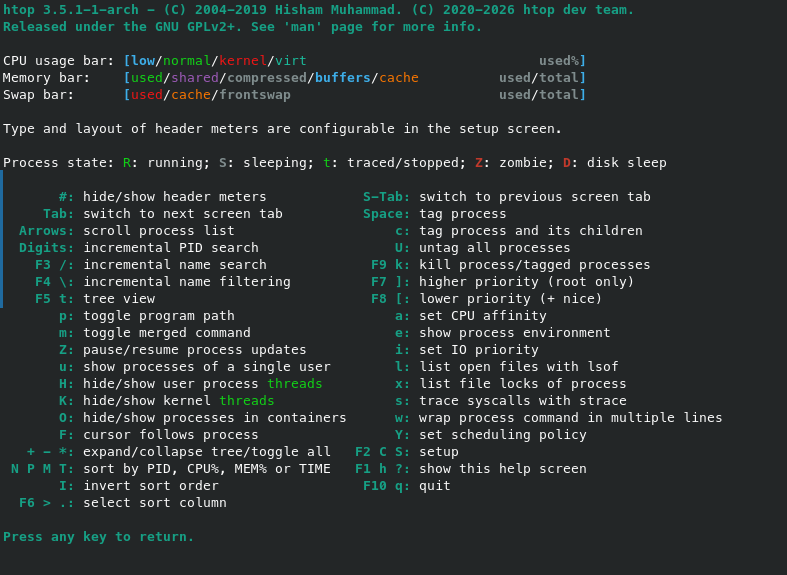
The Memory bar breaks down like this:
| Color | Meaning |
|---|---|
| Green | Used by processes |
| Purple | Shared |
| Gray | Compressed |
| Blue | Buffers |
| Brown / orange | Cache |
That yellow compressed slice is the visual hint that the kernel is holding compressed pages in RAM — the same class of work zswap and zram do, surfaced without reading sysfs.
The Swap bar has its own useful label: frontswap (gray). That is the front-end swap cache zswap plugs into. If zswap is active and holding pages, you may see frontswap usage here even when disk swap looks barely touched.
On my laptop at the time of the screenshot:
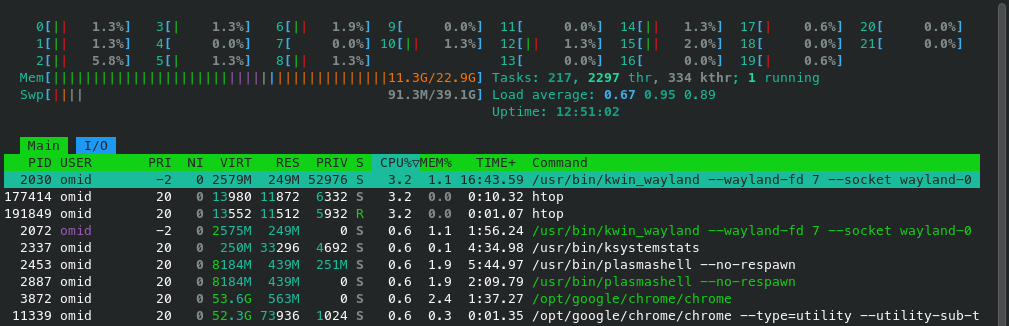
- Mem: 11.3G / 22.9G — with a visible compressed segment in the bar
- Swp: 91.3M / 39.1G — almost nothing on disk, while compression is doing work in RAM
That gap between “memory pressure exists” and “swap file barely used” is exactly the kind of clue that sent me digging into zswap in the first place.
For the exact numbers behind the colors, keep going with the checks below.
1. Is zswap enabled?
| |
Y means the module is active. If the file is missing, your kernel may not have zswap built in, or it was never loaded.
Other useful zswap knobs live under /sys/module/zswap/parameters/ — compressor algorithm, pool limit, and whether it accepts pages from zram backends.
2. Are you using zram?
| |
No output usually means no zram devices. If present, you will see devices like /dev/zram0 with compression algorithm and size.
Confirm whether zram is actually used as swap:
| |
Example with only a disk swapfile:
| |
Example with zram:
| |
3. What is swap doing right now?
| |
4. Kernel boot configuration
Some systems enable zswap via kernel command line:
| |
Look for zswap.enabled=1 or related parameters. Distro defaults vary; Manjaro and many Arch-based installs often inherit a enabled-by-default zswap policy on recent kernels, but verify rather than assume.
What the /proc/meminfo numbers mean
This is the part that made the feature real for me.
| |
Example output from my Manjaro laptop during a normal development session:
| |
| Field | Meaning |
|---|---|
| SwapTotal / SwapFree / SwapUsed | Size and consumption of configured swap devices (file or partition). |
| SwapCached | Swap-backed pages that also exist in the page cache — not the same thing as zswap. |
| Zswap | RAM currently used by the zswap compressed pool. |
| Zswapped | Uncompressed size of pages stored in that pool — the “logical” amount of memory offloaded into compression. |
On my machine at that moment:
- Zswapped ≈ 1.6 GB — about this much cold memory had been compressed.
- Zswap ≈ 595 MB — the compressed pool actually occupied this much RAM.
- Compression ratio ≈ 2.7:1 — Linux recovered roughly 1 GB of effective headroom without writing those pages to the SSD.
That ratio will move around during the day. Developer workloads — source trees, language servers, JSON, ASTs, browser tabs — tend to compress reasonably well. Video buffers, encrypted data, and already-compressed assets tend not to.
What I found on my Manjaro laptop
Putting it together:
| |
No zram devices. Just zswap silently sitting in front of a large swap file I created years ago.
That configuration is neither exotic nor manually tuned on my part. It is simply what a modern kernel + desktop workload looks like when you are not paying attention — which, apparently, was me.
Swap file vs swap partition — the question that started this
Since this whole investigation began with swap files, a short answer belongs here.
Historically, swap partitions avoided filesystem overhead and fragmentation concerns. Installers loved them because layout was predictable.
Today on a desktop SSD, the difference is often smaller than the documentation implies:
- A swap file is easier to resize, migrate, and snapshot alongside the rest of the filesystem.
- A swap partition is a dedicated block device with slightly simpler I/O semantics.
- Filesystem support matters: btrfs, ext4, and xfs each have notes worth reading before choosing swap-file placement.
But the bigger performance lever in 2026 is usually not partition-vs-file. It is whether the kernel compresses before hitting disk at all.
Useful background:
Why this stayed invisible for so long
What surprised me was not the technology. It was how little of the old literature mentions it.
Most virtual memory explainers still teach the two-layer model: RAM, then disk. Swap partition sizing guides predate zswap by decades. For years the default advice was blunt: buy more RAM.
That advice made sense when RAM was cheap and laptop memory was socketed.
It makes less sense on today’s hardware:
- Many laptops ship with soldered memory.
- Developer stacks are heavier: IDE, language servers, containers, browser, messaging, sync tools.
- My ASUS laptop is 24 GB total (8 GB soldered + 16 GB SODIMM) — fine most days, tight on the bad ones.
Compression does not fix soldered RAM. It does buy time before the machine falls off the latency cliff of heavy disk swap — which is exactly when desktops start to stutter in ways that feel mysterious if you only watch CPU graphs.
Does compressed memory replace more RAM?
No. This is the most important takeaway.
zswap does not turn a 24 GB machine into a 48 GB machine. It delays the point where the kernel must push large volumes of anonymous memory to disk.
What it can do on a developer machine:
- Shrink the number of swap-out events during routine multitasking.
- Reduce SSD write amplification from cold anonymous pages.
- Keep the system responsive for a while longer under burst load.
What it cannot do:
- Guarantee compression for every workload.
- Remove the need for swap (or RAM) entirely.
- Help much when the working set is already dominated by incompressible data.
On my box, zswap quietly saves on the order of ~1 GB of effective pressure during normal work. Not revolutionary. Definitely not nothing.
How to check memory compression on macOS and Windows
Linux is not alone. If you use multiple OSes, these are the equivalents.
macOS
Apple has compressed memory since OS X Mavericks (10.9). Activity Monitor shows it under Memory → Compressed. From the terminal:
| |
Look for:
| |
- Pages stored in compressor — original uncompressed page count held in the compressor.
- Pages occupied by compressor — physical RAM actually used to store the compressed result.
Multiply by page size (commonly 4096 bytes on Intel Macs; use vm_page_size from vm_stat header on Apple Silicon) to convert to MB/GB.
Continuous sampling:
| |
Apple’s original design overview: OS X Mavericks Core Technology Overview (PDF) — see the Compressed Memory section.
GUI path: Activity Monitor → Memory → Compressed at the bottom of the window.
Windows 10 / 11
Windows enables memory compression by default on client editions. Two quick checks:
Task Manager
- Open Task Manager (
Ctrl+Shift+Esc) - Performance → Memory
- Read In use (Compressed) — the value in parentheses is compressed memory
PowerShell (administrator)
| |
If MemoryCompression : True, the feature is on.
To inspect the hidden system process:
| |
Server SKUs may ship with compression disabled; enable with Enable-MMAgent -MemoryCompression if you deliberately want it.
Microsoft background: Memory compression on Windows 10
All modern desktops converged on the same idea
Once you know what to look for, the family resemblance is obvious:
| |
| OS | Mechanism | Typical inspection |
|---|---|---|
| Linux | zswap, zram, disk swap | /proc/meminfo, zramctl, /sys/module/zswap/ |
| macOS | In-kernel compressor + swap | vm_stat, Activity Monitor |
| Windows | Memory Compression store | Task Manager, Get-MMAgent |
The reason is economic: CPU cycles got cheaper faster than RAM capacity grew, especially on laptops. Compressing a cold page and keeping it in RAM is often cheaper than an NVMe round trip — and vastly cheaper than the interactive latency of a swapping IDE session.
That trade-off is why the feature ships enabled, not why it gets explained well.
Conclusion
After more than a decade of Linux usage, I accidentally discovered that my machine has been compressing memory for years.
Not because the feature was hidden — the stats were in /proc/meminfo the whole time — but because most of the articles I learned from were built around an older two-layer model of virtual memory.
The funny part is that I only found it while researching something completely different: swap files versus swap partitions.
Sometimes the most interesting things are already running on your machine. You just need the updated map.
Further reading
- The zswap compressed swap cache (LWN.net, Seth Jennings) — the original clear explainer
- Linux kernel docs: zswap
- Arch Wiki: Zswap
- Arch Wiki: Zram
- Arch Wiki: Swap — swap files, partitions, and priorities
- OS X Mavericks Core Technology Overview (PDF) — Apple’s compressed memory design
- Microsoft: Memory compression overview
- Phoronix: Zswap merged into Linux 3.11 — contemporary news context
If you are chasing the feel of memory pressure rather than swap counters alone, my earlier post Building a Tiny Linux App to Explain Desktop Stutter looks at PSI and latency — a complementary lens on the same underlying problem.